Drop Audio File Here
MP3, WAV, FLAC, OGG, M4A, AIFF — best results with speech recordings
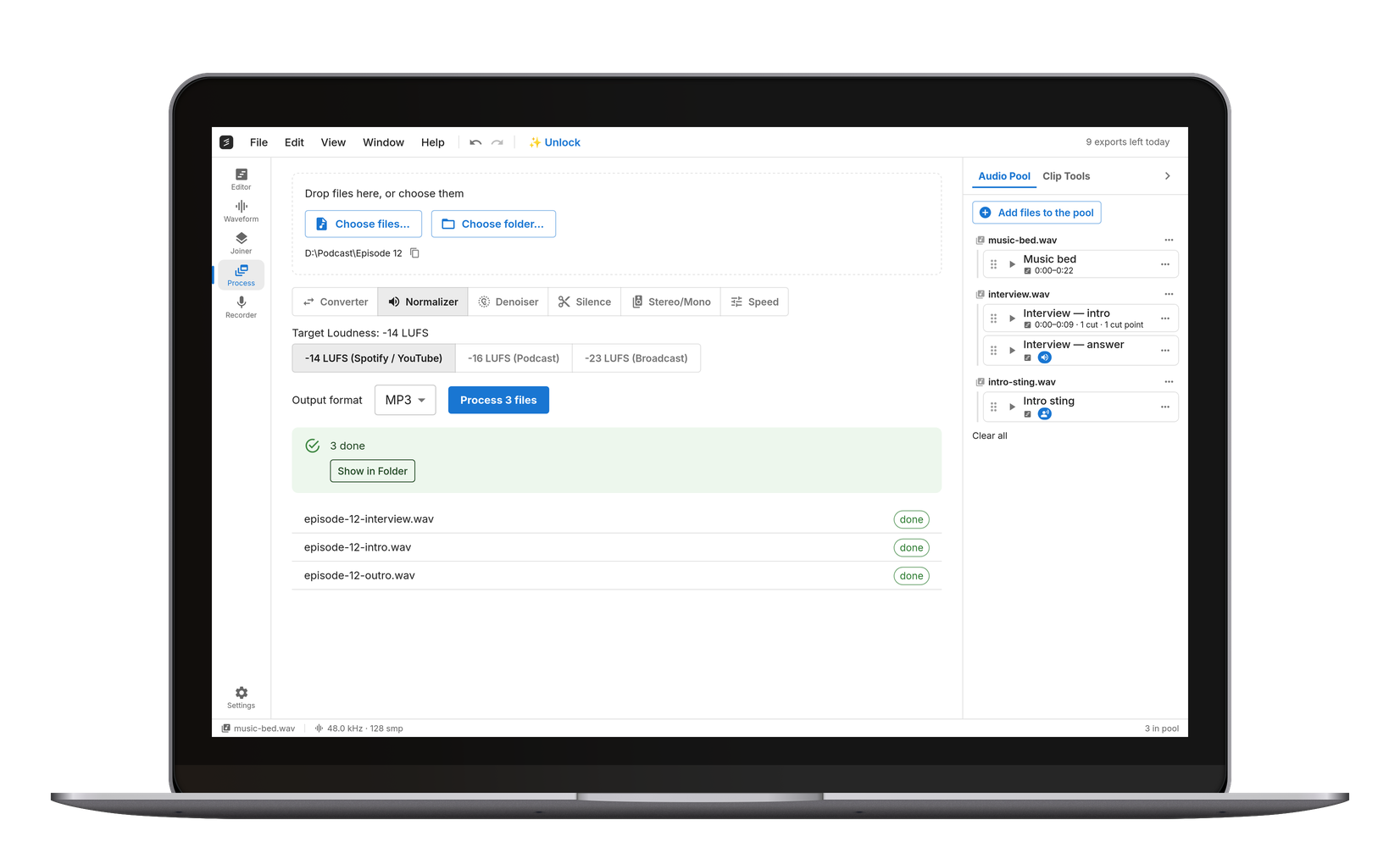
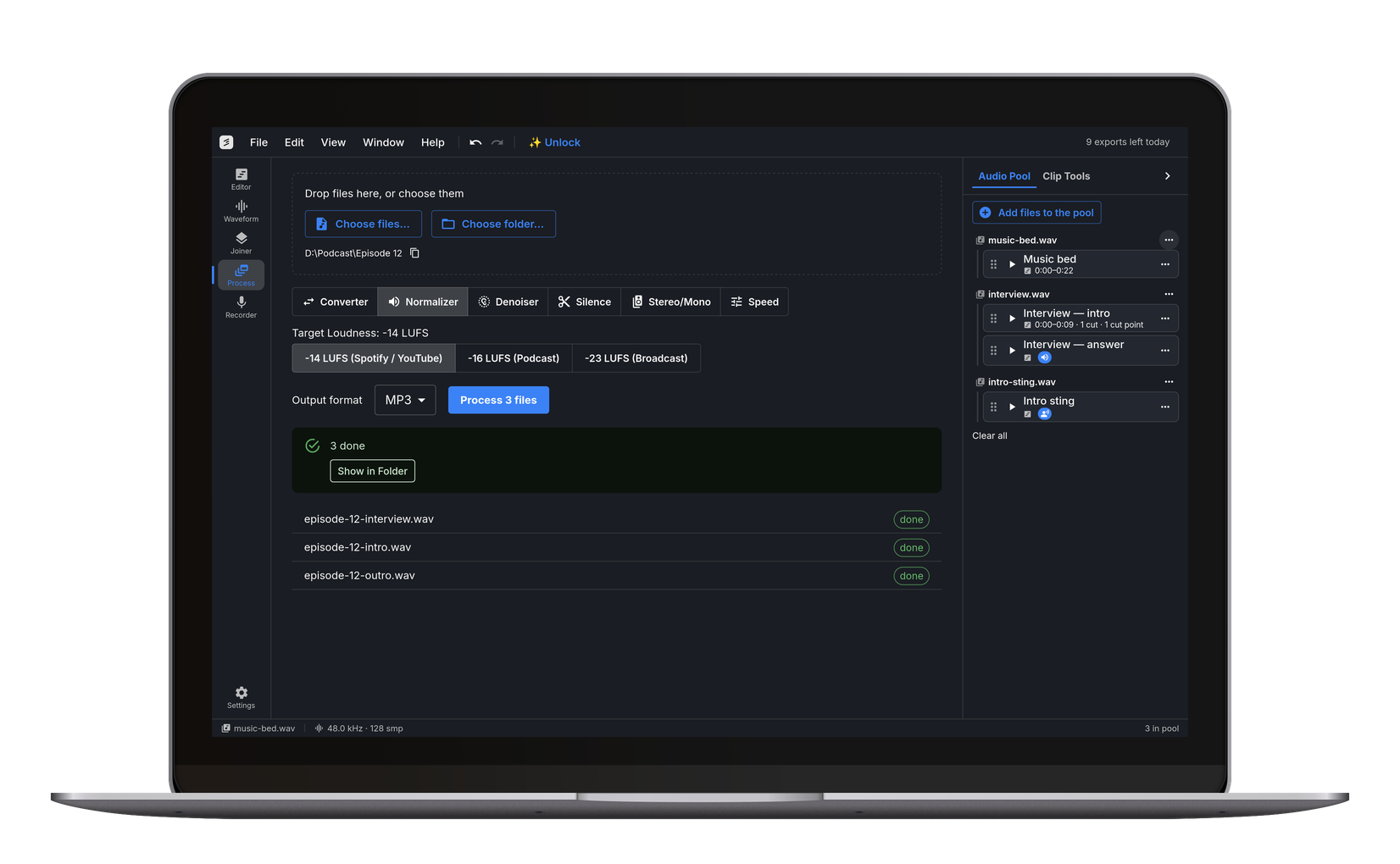
AI Noise Suppression in Your Browser
This tool uses a neural network trained on thousands of hours of noisy speech to separate voice from background noise. It removes fan hum, air conditioning, keyboard clicks, and other constant background sounds — while preserving natural voice quality. Everything runs locally in your browser, so your audio never leaves your device.
Clean Up Podcast and Interview Recordings
Background noise is the number one amateur-sounding mistake in podcast and interview recordings. A noisy HVAC system, outdoor traffic, or a buzzing USB mic cable can ruin otherwise great content. Drop your recording here and get a clean version fast — no DAW plugins, no install, no account.
Remove Static, Hiss, and Hum
Constant broadband noise is exactly what the neural network is trained on: tape hiss, electrical hum from a ground loop, and static from a cheap microphone all fall away, while the voice underneath stays intact. If full removal sounds too aggressive on light noise, pull the strength slider back and blend the original signal in.
Remove Background Noise from Video and Zoom Recordings
You can drop a video file straight into the tool — an MP4 from Zoom or Teams, a WebM screen capture, a phone clip. The audio track is pulled out and cleaned right in your browser, and you get back a noise-free audio file, ready for a transcript, a podcast edit, or re-importing into your video editor. Meeting recordings especially benefit: laptop fans, air conditioning and keyboard typing from participants on mute are the classic offenders.
Denoise First, Then Cut the Bits You Don't Want
Noise suppression fixes how a recording sounds, not what is in it — the first two minutes of small talk before the interview starts are just as clean as everything else afterwards. Send the denoised file to the Trimmer to take those out: mark the ends and any section in the middle that should go, and export one file. Denoising first is the right order, because the model works on the whole track and hears more of the noise floor when the quiet parts are still there.
Open the Audio Trimmer →Fast, Local Processing
No server upload. AI noise suppression runs locally in your browser, and it's fast.100% Private
Your audio never leaves your device. Nothing is uploaded to any server.Works on Any Device
Desktop, tablet, phone, or Chromebook. Remove noise wherever you have a browser.Frequently Asked Questions
The AI model is best at stationary noise: fan hum, air conditioning, room tone, white noise, and similar constant background sounds. It also handles keyboard clicks. It is not designed to remove room echo, music, other voices, or sudden loud noises.
The neural network is specifically trained to preserve speech. In most cases, the voice sounds natural after processing. If you hear slight artifacts, reduce the Noise Reduction slider to blend more of the original signal back in.
This tool is optimized for speech: podcasts, interviews, meetings, voice memos. Using it on music will likely produce artifacts. For music noise reduction, a spectral editor is more appropriate.
Yes, and the stereo image is preserved. Each channel is denoised separately by its own instance of the noise model, so the left and right channels stay as different from each other as they were in your recording.
At 100%, you hear only the AI-cleaned signal. At lower values, the original audio is blended back in. Use a lower setting (25–50%) for light background noise where full removal sounds too aggressive, or keep it at 100% for heavy noise.
Yes — drop the video file (MP4, MOV, MKV or WebM) straight in. The audio track is extracted on your device and the noise removal runs on that. The output is a clean audio file (MP3, WAV, FLAC, or OGG), not a new video — re-import it into your video editor to replace the original track. Recordings up to one hour work for free; with Pro, longer ones are split into parts.
No. The neural network runs entirely in your browser.